When I audit an online store, the GA4 ecommerce setup is usually "mostly there": a purchase event, maybe an add_to_cart, but item data is missing, revenue does not match the store, or every refresh of the thank-you page creates a new sale. GA4 can only give you useful product and revenue reports if the events, parameters and item arrays follow Google's schema exactly. This checklist follows the order I use on client stores, from planning events to testing them.
A note on naming: "Enhanced Ecommerce" was the name of the old Universal Analytics feature. In GA4 it is simply called ecommerce tracking, built on a set of recommended events. People still search for "GA4 enhanced ecommerce", so I use both names here.
What is GA4 ecommerce tracking?
GA4 ecommerce tracking is a set of recommended events, such as view_item, add_to_cart, begin_checkout and purchase, that send product, cart and order data to GA4 in a fixed format. When those events use the exact names and parameters Google expects, GA4 fills its Monetization reports, including Ecommerce purchases and Purchase journey, and can share revenue with Google Ads.
If you invent your own names, like addToCart or order_complete, GA4 treats them as custom events and the ecommerce reports stay empty.
Which GA4 ecommerce events should you track?
You should track at least the core funnel events, and add the optional ones that match how your store works. Here is the full list of GA4 recommended ecommerce events:
| Event | When it fires | Priority |
|---|---|---|
view_item_list |
A list of products is shown (category, search results) | Recommended |
select_item |
A product is clicked from a list | Optional |
view_item |
A product page is viewed | Core |
add_to_wishlist |
A product is added to a wishlist | Optional |
add_to_cart |
A product is added to the cart | Core |
remove_from_cart |
A product is removed from the cart | Recommended |
view_cart |
The cart page or drawer is viewed | Recommended |
begin_checkout |
Checkout starts | Core |
add_shipping_info |
Shipping details are submitted | Recommended |
add_payment_info |
Payment details are submitted | Recommended |
purchase |
An order is completed | Core |
refund |
An order is fully or partly refunded | Optional |
view_promotion / select_promotion |
An internal banner is seen or clicked | Optional |
Checklist part 1: plan the data layer
The data layer is the foundation, so plan it before you touch GTM. The data layer is a JavaScript object on your site that holds structured information, like product and order details, for Google Tag Manager to read.
- Decide which events you need from the table above.
- Agree on a consistent
item_id(usually the SKU) that matches your product feed in Google Merchant Center. - Decide how variants are sent, for example size and colour in
item_variant. - Confirm the currency code, using the three-letter ISO format such as
BDTorUSD. - Decide what
valuemeans. Google's own examples use the item subtotal and sendtaxandshippingseparately; whatever you choose, apply the same rule everywhere. - Check whether your platform (Shopify, WooCommerce or custom) already pushes a GA4-format data layer, or whether you need a plugin or developer work.
What a correct purchase push looks like
Every ecommerce event needs an items array, and each item needs either item_id or item_name. The purchase event also needs a unique transaction_id. I clear the previous ecommerce object first so data from an earlier event does not leak into this one:
window.dataLayer = window.dataLayer || [];
window.dataLayer.push({ ecommerce: null });
window.dataLayer.push({
  event: "purchase",
  ecommerce: {
    transaction_id: "ORD-10482",
    value: 2350,
    currency: "BDT",
    shipping: 100,
    items: [
      {
        item_id: "TEA-250-GRN",
        item_name: "Green Tea 250g",
        item_category: "Tea",
        item_variant: "250g",
        price: 1175,
        quantity: 2
      }
    ]
  }
});
Here value is the item subtotal (2 x 1175), with shipping sent separately. It should be a number, not a string with a currency symbol. If you send value, you must also send currency, or GA4 will not record the revenue correctly.
Checklist part 2: build the tags in Google Tag Manager
In GTM, each ecommerce event needs a trigger that listens for the data layer event and a GA4 Event tag that sends it. This is the setup I use:
- Make sure a Google tag with your GA4 Measurement ID (it starts with
G-) fires on all pages. - Create a Custom Event trigger for each event name, for example
add_to_cart. Alternatively, one trigger with a regex such asview_item|add_to_cart|begin_checkout|purchasecan cover several events. - Create a Google Analytics: GA4 Event tag. Set the event name to
{{Event}}if you use one shared trigger, or type the name. - Under More Settings > Ecommerce, tick Send Ecommerce data and choose Data Layer as the data source.
- Check consent settings on the tag if you use Consent Mode.
- Publish only after testing (see part 4).
- Google tag fires once per page, not twice from both a plugin and GTM.
- Every ecommerce tag has "Send Ecommerce data" enabled.
- Event names exactly match Google's recommended names, all lowercase.
- No old Universal Analytics tags or Enhanced Ecommerce data layer formats remain.
Checklist part 3: protect the purchase event
The purchase event is the one that matters most, because it feeds revenue reports and, if you link Google Ads, your bidding. Most of the serious errors I find are here.
- It fires only on a real order confirmation, not when someone reloads or revisits the thank-you page.
-
transaction_idis the actual order number from your store, never a random or empty value. GA4 uses it to help remove duplicate purchases. -
valuematches the order total rule you decided in part 1. - Every product in the order appears in
items, with the correctquantityandprice. - Payment gateway redirects return the customer to a confirmation page on your site, so the event can fire.
- For cash on delivery stores, decide whether the order placement counts as the purchase, and use the
refundevent or backend reporting for cancelled or returned orders.
What I found on real stores
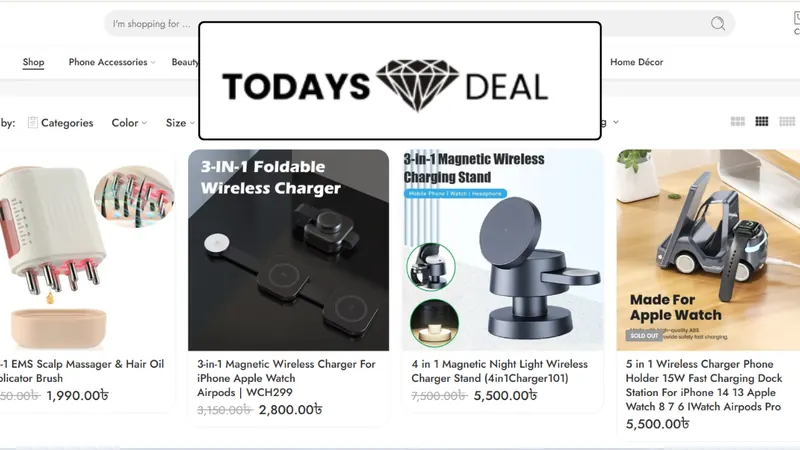
On Todays Deal BD, a Bangladeshi online marketplace, purchase events lacked value and transaction ID mapping, and there was no ecommerce schema for funnel visibility. I configured the View Item, Add to Cart, Begin Checkout and Purchase events, built a clean data layer with product arrays, currency, transaction_id and revenue values, and synced GA4 purchase values to Google Ads. On Shukhi Life, the purchase event did not capture dynamic product data, so fixing the item array was the first priority there too.
Checklist part 4: test before you trust it
Testing is not optional. Run a complete journey yourself, from product list to purchase, and check every step.
- Use GTM Preview mode (Tag Assistant) to confirm each tag fires once on the right event.
- In the Tag Assistant, open the data layer tab for each event and check the
ecommerceobject. - Open GA4 DebugView (Admin > Data display > DebugView) and click into each event to check its parameters and items.
- Place a real test order, then compare the order number and total with GA4.
- After 24 to 48 hours, check the Monetization reports for item names, revenue and the purchase journey.
- Compare a week of GA4 purchases with your store's orders. Some difference is normal because of ad blockers and consent, but large gaps need investigation.
If GA4 still disagrees with Google Ads after all of this, read why GA4 and Google Ads show different conversion numbers before assuming something is broken.
What comes after the basic setup?
Once the browser setup is clean, you can make it more resilient and more useful. Common next steps are marking purchase as a key event and importing or tagging it in Google Ads, adding enhanced conversions, and sending events through a server container. I explain the last option in What is server-side tracking. You can also register custom dimensions for any extra item parameters you want to report on.
Final thoughts
GA4 ecommerce tracking rewards precision: exact event names, a clean item array and a purchase event that fires once per real order. Work through this checklist in order and you will have revenue data you can actually make decisions with. If you would rather have it built and tested for you, see my conversion tracking service or book a free tracking audit.