Most broken tracking setups I audit were not built badly on purpose. Someone added a tag in a hurry, a developer changed a button, a plugin injected its own code, and six months later the Google Ads account is optimizing toward numbers nobody trusts. Google Tag Manager (GTM) makes it easy to add tracking without touching code, and that is exactly why small mistakes pile up quietly.
Below are the mistakes I see most often when I open a client's GTM container, why each one breaks conversion tracking, and how to fix it. None of them need a developer to diagnose. You need GTM Preview mode, GA4 DebugView and about an hour.
Why do small GTM mistakes cause such big tracking problems?
Small GTM mistakes cause big problems because ad platforms treat every conversion you send as truth. Google Ads Smart Bidding and Meta's delivery system both learn from your conversion data. If a purchase fires twice, the platform thinks that campaign is twice as profitable. If a lead form never fires, it thinks the campaign failed and pulls budget away from it.
The damage is rarely visible in the GTM interface itself. Tags show as "fired" in Preview mode even when they send the wrong value, the wrong event name or a duplicate. That is why you have to check what actually arrives in GA4, Google Ads and Meta Events Manager, not just whether a tag fired.
Mistake 1: Installing the same tag twice
The most common problem is double installation: a hardcoded Google tag (gtag.js) in the theme plus a Google tag inside GTM, both sending to the same GA4 property. Shopify apps, WordPress plugins like Site Kit, and old developer code are frequent culprits. The result is doubled page views, doubled events and sometimes doubled purchases.
How to check:
- Open your site with the Tag Assistant (tagassistant.google.com) and look at how many Google tags load.
- View the page source and search for
gtag(andfbq(. - In GA4 DebugView, check whether a single page load produces two
page_viewevents.
The fix is to pick one source of truth. For most of my clients that is GTM, so I remove hardcoded snippets and disable plugin-level tracking that duplicates it.
Mistake 2: Firing conversion tags on the wrong trigger
A conversion tag is only as accurate as its trigger. The classic errors are:
- Purchase tags on "All Pages" or on a trigger that matches too broadly, such as Page URL contains
order. - Thank-you page triggers without protection against reloads. Customers refresh the confirmation page or return to it from an email, and the purchase fires again.
- Form triggers on button clicks, so every click on "Submit" counts as a lead, even when validation fails and the form is never sent.
- Click URL or Click Text triggers that stop working the moment someone renames a button.
A more robust approach is to fire conversions from a dataLayer event that your site pushes only after the action really succeeds. For ecommerce, that looks like this:
window.dataLayer = window.dataLayer || [];
dataLayer.push({ ecommerce: null }); // clear the previous ecommerce object
dataLayer.push({
  event: 'purchase',
  ecommerce: {
    transaction_id: 'WC-10482',
    value: 2450,
    currency: 'BDT',
    items: [{ item_id: 'TS-001', item_name: 'Cotton T-Shirt', price: 1225, quantity: 2 }]
  }
});
Then use a Custom Event trigger named purchase instead of a page URL match. For forms, trigger on a success message, a redirect to a confirmation page, or a custom event the form plugin pushes on successful submission.
Mistake 3: Missing or broken transaction IDs and values
Purchase and lead conversions without a unique ID cannot be deduplicated. GA4 uses transaction_id to drop duplicate purchases, Google Ads uses a transaction ID for the same purpose, and Meta uses event_id (I explain that in detail in my post on Meta CAPI event deduplication).
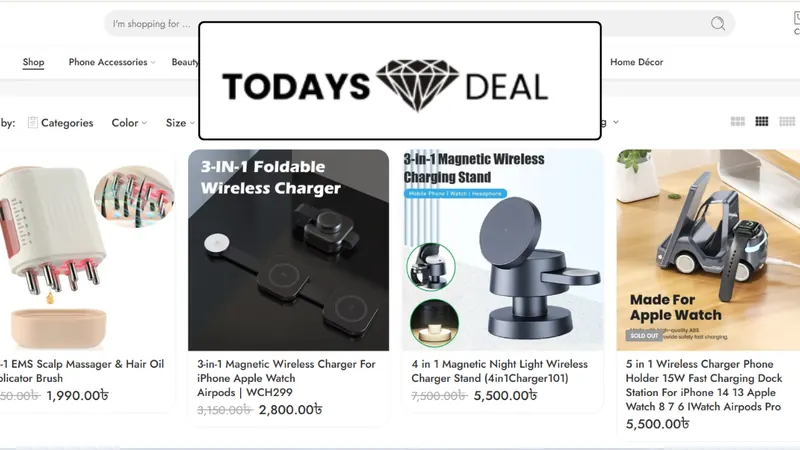
I often find value variables that return undefined, a currency hardcoded to USD on a store that sells in BDT, or a value that includes shipping on one platform and excludes it on another. On the Todays Deal BD project, purchase events lacked value and transaction ID mapping, so attribution relied on clicks instead of verified revenue until I rebuilt the data layer.
Check these in Preview mode by clicking the purchase event and opening the Variables tab. Every variable used in a conversion tag should show a real, correctly formatted value.
Mistake 4: Forgetting to clear the ecommerce object
GTM's data layer merges pushes together. If you push a view_item event and later push add_to_cart without clearing the previous ecommerce object, leftover items can leak into the next event. GA4 then reports product data that does not belong there.
Google's own ecommerce documentation recommends pushing { ecommerce: null } before each ecommerce event, as in the snippet above. It is one line and it prevents a whole class of strange reports.
Mistake 5: Testing in Preview mode but never publishing
GTM saves changes in a workspace. Nothing goes live until you click Submit and publish a version. I regularly find containers with weeks of unpublished work, or the opposite: someone published a half-finished workspace that broke live tags.
Good habits:
- Name every published version with what changed and why.
- Use separate workspaces for separate projects.
- After publishing, test once more on the live site, not just in Preview mode.
- If a release breaks something, roll back to the previous version from the Versions tab instead of editing under pressure.
Mistake 6: Ignoring consent settings
If your site uses a cookie banner, your tags need to respect it. With Consent Mode v2, Google tags read consent states such as ad_storage, analytics_storage, ad_user_data and ad_personalization. A common mistake is a consent banner that loads after GTM tags have already fired, or Meta and other non-Google tags that ignore consent completely.
In GTM, check Admin > Container Settings to make sure consent overview is enabled, then review each tag's consent settings. If your audience includes visitors from the EEA or UK, this is not optional. My Consent Mode v2 guide covers the setup in more depth.
Mistake 7: A messy, undocumented container
A container with 140 tags named "GA4 event copy 2" is a container where mistakes hide. On the FAARNS project, the GTM structure was missing and disorganized, and form submissions were not properly connected to analytics. Rebuilding the container with clear naming conventions and organized triggers made every later change faster and safer.
A simple naming convention I use:
| Item | Pattern | Example |
|---|---|---|
| Tag | Platform - Type - Detail | GA4 - Event - generate_lead |
| Trigger | Type - Condition | CE - purchase |
| Variable | Type - Name | DLV - ecommerce.value |
Delete paused tags you will never use, group related items in folders, and remove old Universal Analytics tags, which have not collected data for a long time.
How do I audit my GTM container quickly?
The fastest way to audit a GTM container is to walk through your key conversions one by one in Preview mode and confirm each lands correctly in the destination platform. Use this checklist:
- Only one GA4 Google tag loads per page
- No hardcoded tracking duplicates a GTM tag
- Every conversion fires from a success-only trigger
- Purchase events include
transaction_id,valueandcurrency -
ecommerce: nullis pushed before each ecommerce event - Consent settings are configured for every tag
- Conversions appear in GA4 DebugView and Google Ads diagnostics
- Meta events appear in Events Manager's Test Events tool
- The live container version matches what you tested
If you want a broader version of this process that covers GA4, Google Ads and Meta together, see my 30-minute tracking audit checklist.
Final thoughts
GTM rarely fails loudly; it fails by sending slightly wrong data that your ad platforms then optimize toward. Fixing triggers, IDs and duplicates is unglamorous work, but it is often the cheapest performance improvement an ad account can get. If you would rather have someone check it for you, my advanced conversion tracking service starts with exactly this kind of review, and you can book a free tracking audit.